vfat.io Documentation
vfat.io is a DeFi portfolio manager and yield aggregator. Find a pool to earn from, deposit into it, manage and exit your positions, and track your wallets across supported EVM chains from one interface.
Positions you open through vfat.io are held by Sickle, a smart contract wallet deployed to your address the first time you deposit on a chain. You always retain full custody.
Start here
- Find a pool. Open Yield to compare pools and farms by APR, TVL and earnings. Filter by chain, protocol or pool type, or search for a pair such as
WETH/USDC. APRs explains how the yield figures are calculated. - Deposit. Select a pool to open its deposit form. Choose the token and amount (your Sickle can deposit from any token), set a price range for a concentrated-liquidity pool, and optionally turn on automation or cover. See Depositing and Pool deposits, and check Fees before you deposit.
- Manage a position. Open a position on Positions to increase, harvest, compound, rebalance or move it. When a position leaves its price range, rebalance it. To let Sickle act for you, set up Automation: auto-harvest, auto-compound, auto-rebalance or auto-exit.
- Exit or withdraw. Use the Withdraw tab in a position’s action pane to take out part or all of it, or the row’s Exit button to close the whole position into one token. Choose that token for each chain in the Exit panel, with Exit to … every time. To close several positions at once, exit a group.
- Track. Positions shows each position’s value, range status, rewards and PnL. Portfolio covers token balances and positions for one or many wallets, and suggests pools for idle tokens.
Connect a wallet
Select Connect wallet in the top bar, or Wallet in the bar at the bottom of the screen on phones. Once connected, Portfolio opens on your wallet, Positions lists your Sickle positions, and deposit forms start from your balances.
For account switching, open your wallet menu and choose More wallet options. On phones, long account and Recently connected lists scroll inside the wallet popup. The × at the top closes the popup.
Email and Google login use Reown’s embedded wallet. If you use its smart account, the account can receive funds before deployment; Reown deploys it with your first transaction on that network. Exporting the owner wallet’s key gives access to the owner account, which has a different address from the smart account. Keep using the smart account to access funds held at its address.
You can browse Yield and look up any wallet without connecting one. In Portfolio, click Add wallet to enter an address or ENS name, or browse to vfat.io/<address-or-ens>, for example vfat.io/vitalik.eth.
Home page
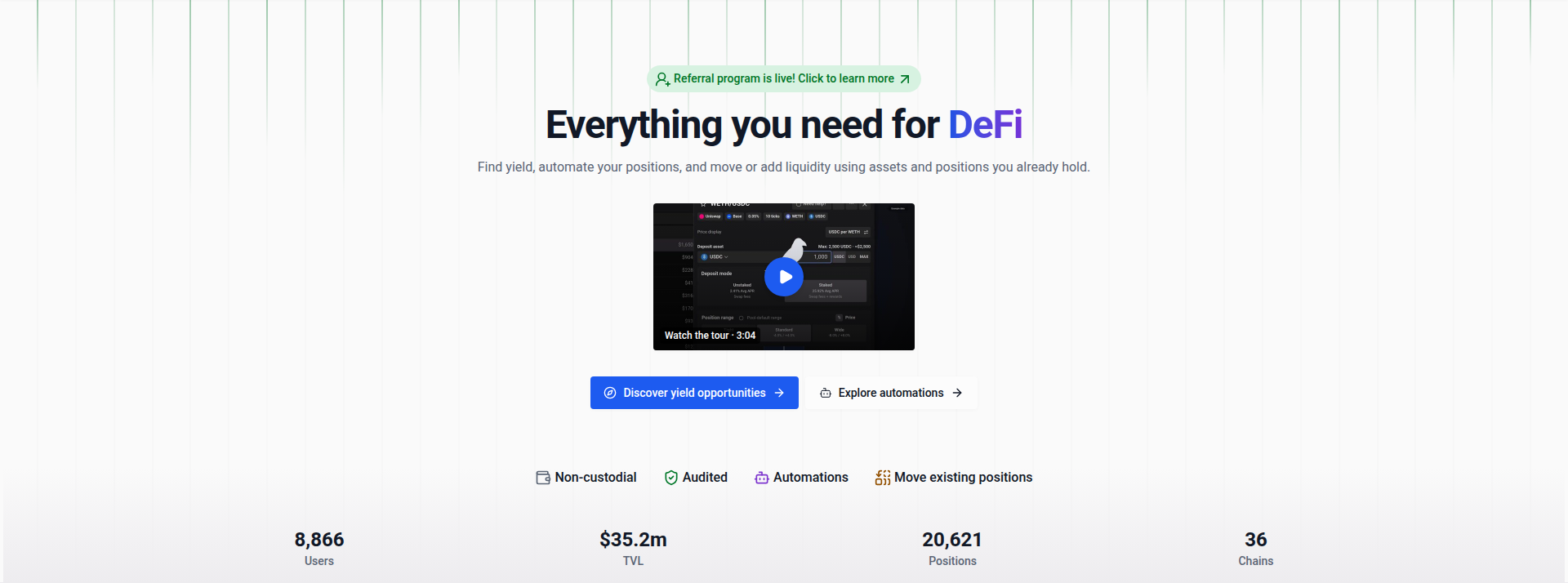
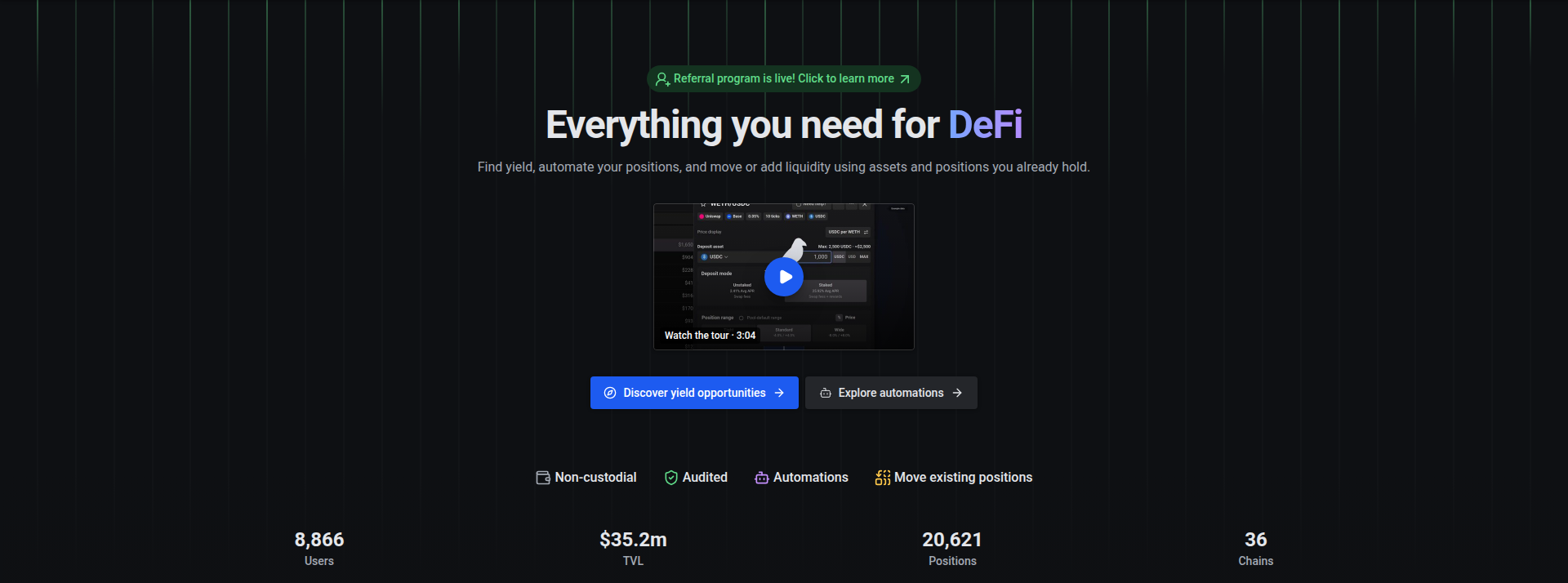
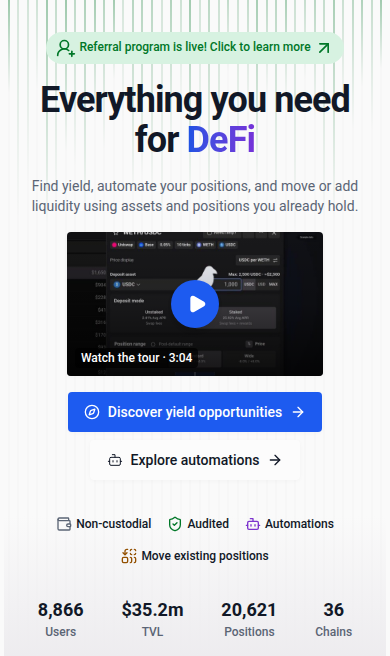
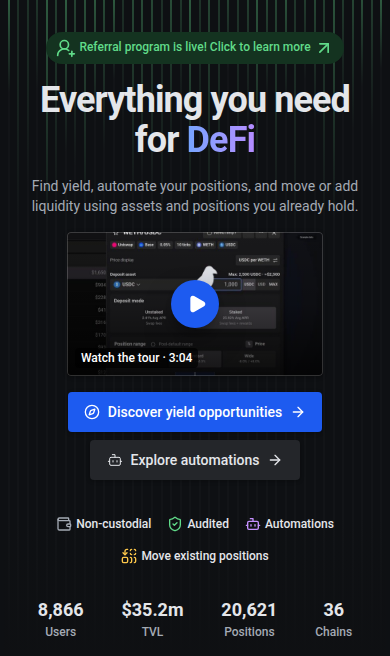
The Watch the tour thumbnail plays a short product tour covering deposits, automation and position management. Close the player to return to the page. Use the tour for an overview, then follow the guides here for each task.
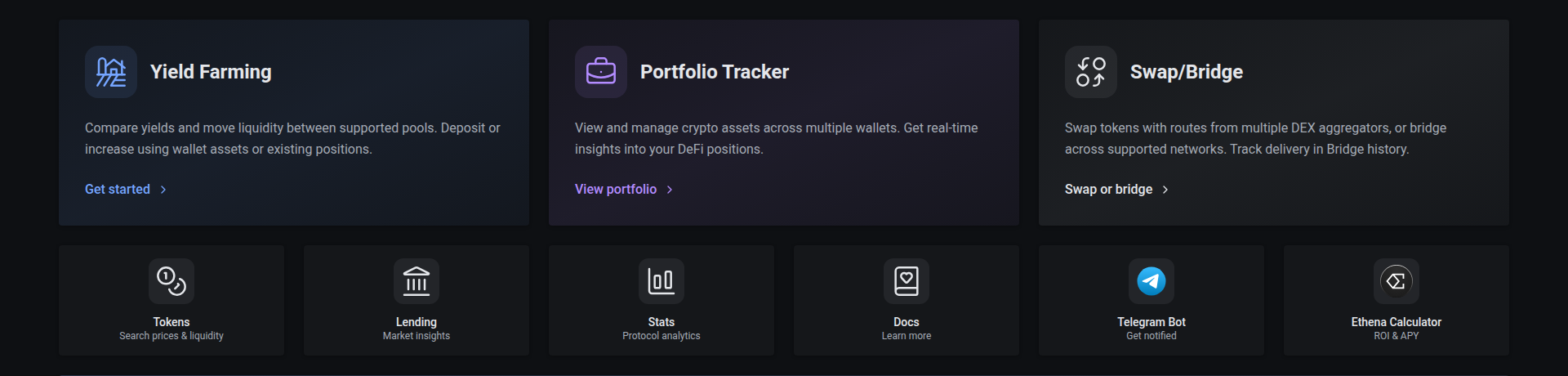
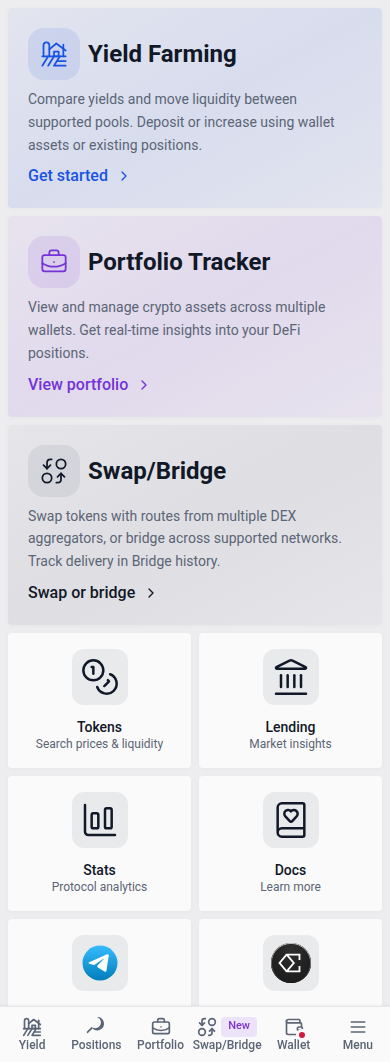
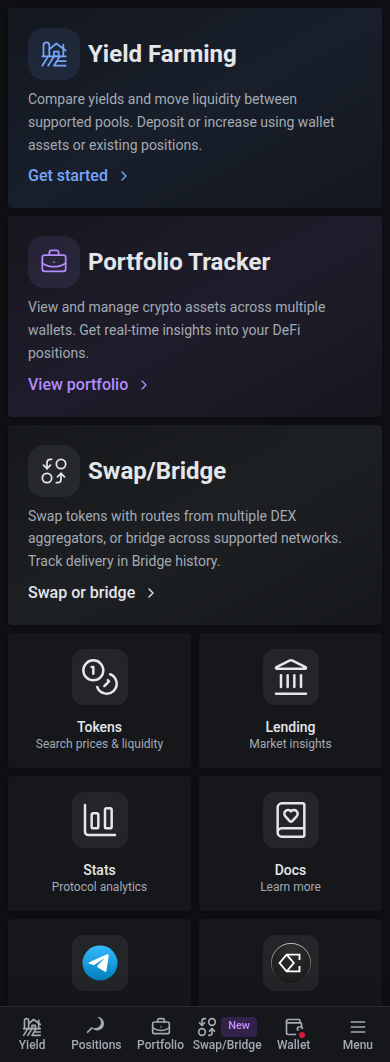
Below the introduction, the Users, TVL, Positions and Chains figures open Stats. Quick links open Yield, Portfolio, Swap/Bridge, Tokens, Lending, Stats, these docs and the Telegram bot, and the MCP section links to the MCP server setup.
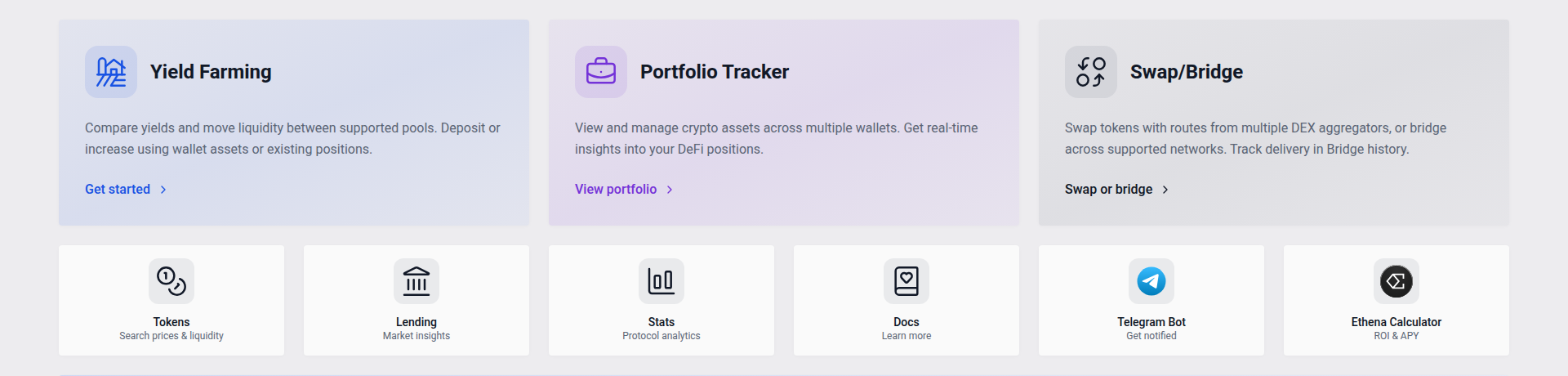
Supported Integrations shows one row each of Blockchains, DeFi Protocols and DEX Aggregators. Select Show all beside a list to see the rest, and Show fewer to return to one row; on phones, swipe a row sideways. Select a blockchain or a protocol to open Yield filtered to it.
Navigation
On desktop, the top bar holds Yield, Positions, Portfolio, Swap/Bridge, Data and More. Positions shows how many positions you have, such as Positions 7, and a red notification with a number only when some need you: the positions out of range. Hover or focus Positions for the counts: out of range, active, inactive and updating, and positions held directly in your wallet. Supported wallet positions can move into a Sickle; other holdings keep their available recovery actions. A pool page highlights Yield, or Positions when it opens one of your positions. Next to the wallet, Notices, Support tickets and the Settings gear sit together; the gear opens App settings, where the theme is. Use Automation beside search on Positions for chain automation and gas accounts.
On phones, the bar at the bottom holds Yield, Positions, Portfolio, Swap/Bridge, Wallet and Menu. Positions shows how many positions you have, and a red count on its icon when some are out of range. Menu opens Home, the secondary pages and settings, and stays highlighted while you browse pages such as Protocols, Tokens or Support. Old /deposits links open Positions with their filters.
Colors
Colors keep the same meaning across the app and in both themes. Blue marks primary actions, such as Connect wallet and automation settings, and purple marks rewards and points. Green, red and amber mark positive values, negative values and warnings. Range bars and range charts show in-range positions in green and out-of-range positions in red. To choose a light or dark theme, see App Settings.
Support tickets
Open Support Tickets from the navigation to follow tickets for your connected wallet. The icon shows your active ticket count. A red dot means the latest reply on at least one open ticket is from staff. It clears once you reply or close those tickets; viewing a ticket alone does not clear it.
Where to go next
- Track your wallets: Portfolio covers multiple wallets, balances and shortcuts such as
vfat.io/vitalik.eth. - Trade and explore: Swap/Bridge compares routes across DEX aggregators and bridges tokens across supported networks. Browse lending markets, protocols and platform stats.
- Understand the costs: Read Fees before depositing or enabling automation.
- See how it works: Learn about Sickle and review the Audits.
- See what changed: The Changelog lists visual changes to the app.