Portfolio View
See token balances, pool, vault and voting-escrow positions, lending and their current value across every supported chain. Portfolio starts from your connected wallet, and you can add any other wallet without connecting it. It sorts what you hold into what earns, what lends and what sits idle, and offers a pool for idle tokens.
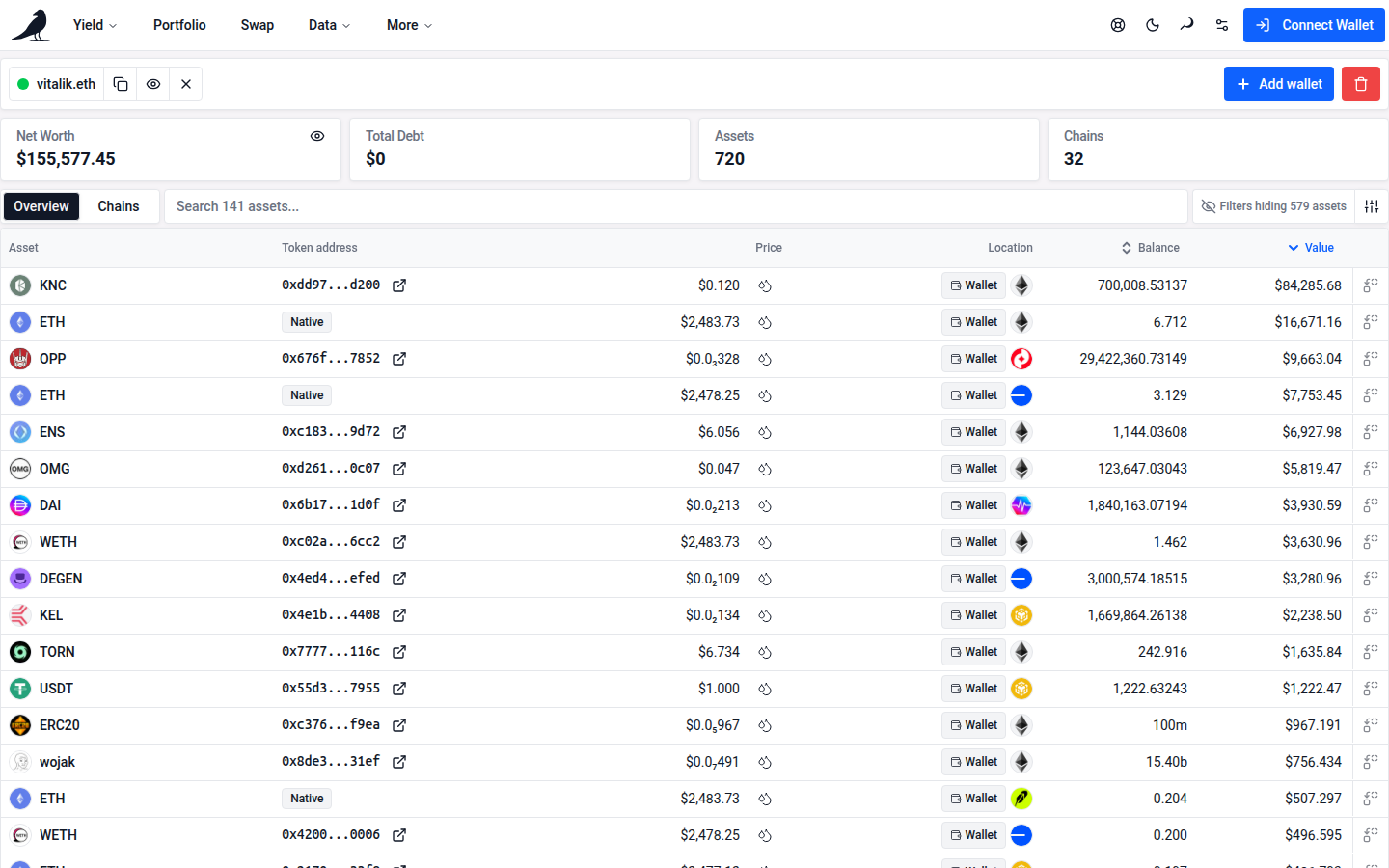
Wallets
Portfolio opens on the wallets you had last time in this browser. A shared link with account parameters opens on its own wallets instead, such as /portfolio?account=alice.eth&account=bob.eth. Hyphenated ENS names stay intact, and older portfolio links still work. With no wallets from last time, Portfolio opens on your connected wallet. If you remove the connected wallet, Portfolio leaves it out until you add it again or connect another wallet.
A shared portfolio link’s preview card leads with the wallets’ total value, the APR of their positions and their PnL, with daily earnings, what’s Unclaimed and their chains underneath. The figures are the totals Portfolio shows for those wallets with no filters; APR, PnL and Unclaimed are left out when there’s none, and PnL is left out when a wallet’s PnL can’t be read. When some balances are reported as unavailable, shared portfolio links use the vfat brand card instead of showing partial totals in the preview.
To share the totals as an image, choose the image button beside the copy-link button (beside Net worth on phones). It makes the same card from the totals on screen, in your display currency and following your filters when the totals do. If some balances are unavailable, the image warns that totals may read low. Both image cards and link previews state PnL coverage when only some positions contribute, and identify incomplete breakdowns. Phones open the share sheet; elsewhere the card is copied, with Download in the confirmation. The card names wallets by address or ENS name, never by the names you gave them. The button is unavailable while totals load or while balances are hidden.
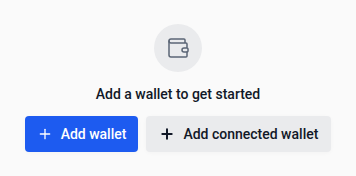
With no wallets yet, Portfolio reads Track any wallet. Type or paste an address or ENS name, or several separated by commas, semicolons, spaces or tabs, then choose Track or press Enter. Below it, Connect wallet connects yours, or Add connected wallet adds the one already connected.
Once the portfolio has wallets, the Wallets menu at the start of the filter row lists All wallets and each wallet with its own net worth. The connected wallet is marked connected with a green dot; the others are watch only. Choose a wallet to see only its balances, and the button names it, such as Wallet: alice.eth 1 of 2; choose All wallets for the whole bundle. Add wallet and Name wallets and save bundles… at the foot of the menu open the wallet list. Above them, Telegram alerts for the shown wallet opens vfat’s Telegram bot in a new tab, ready to watch that wallet; with All wallets shown, Telegram alerts lists a link for each wallet. Each link carries one wallet’s address, never the name you gave it. The link button at the end of the filter row copies a link to these wallets. On phones the wallets are chips above the totals instead, and Add opens the wallet list.
In the wallet list, give a wallet a name, such as Farming: type it beside the wallet’s address and press Enter. The name replaces the address in the Wallets menu, the chips, the Wallet column and the details, with the address or ENS name still beside it in the list. Each wallet also has a Telegram alerts icon that opens the bot for that address. On phones, choose Add beside the wallet chips to reach these icons. The alerts menu shows each wallet’s address alongside its name so you can distinguish wallets with the same name. Under Saved bundles, name the wallets shown to save them as a bundle, such as Main; saving under an existing name replaces that bundle. Each bundle lists its wallets. Open shows a bundle’s wallets in place of the current ones, and the bundle shown reads Shown; rename a bundle in place, or delete it. The Wallets menu also lists your saved bundles, to switch between them in one step. Names and bundles stay in this browser, in every tab, and never go into links: a shared link carries only the wallets’ addresses and ENS names.
The wallet list takes an address or ENS name, or several pasted at once, separated by commas, semicolons, spaces or tabs. It also lists the wallets already in the portfolio, where you can copy an address, hide a wallet from the totals, remove one, or Remove all. The list scrolls when it grows, keeping wallet and bundle controls reachable on smaller screens.
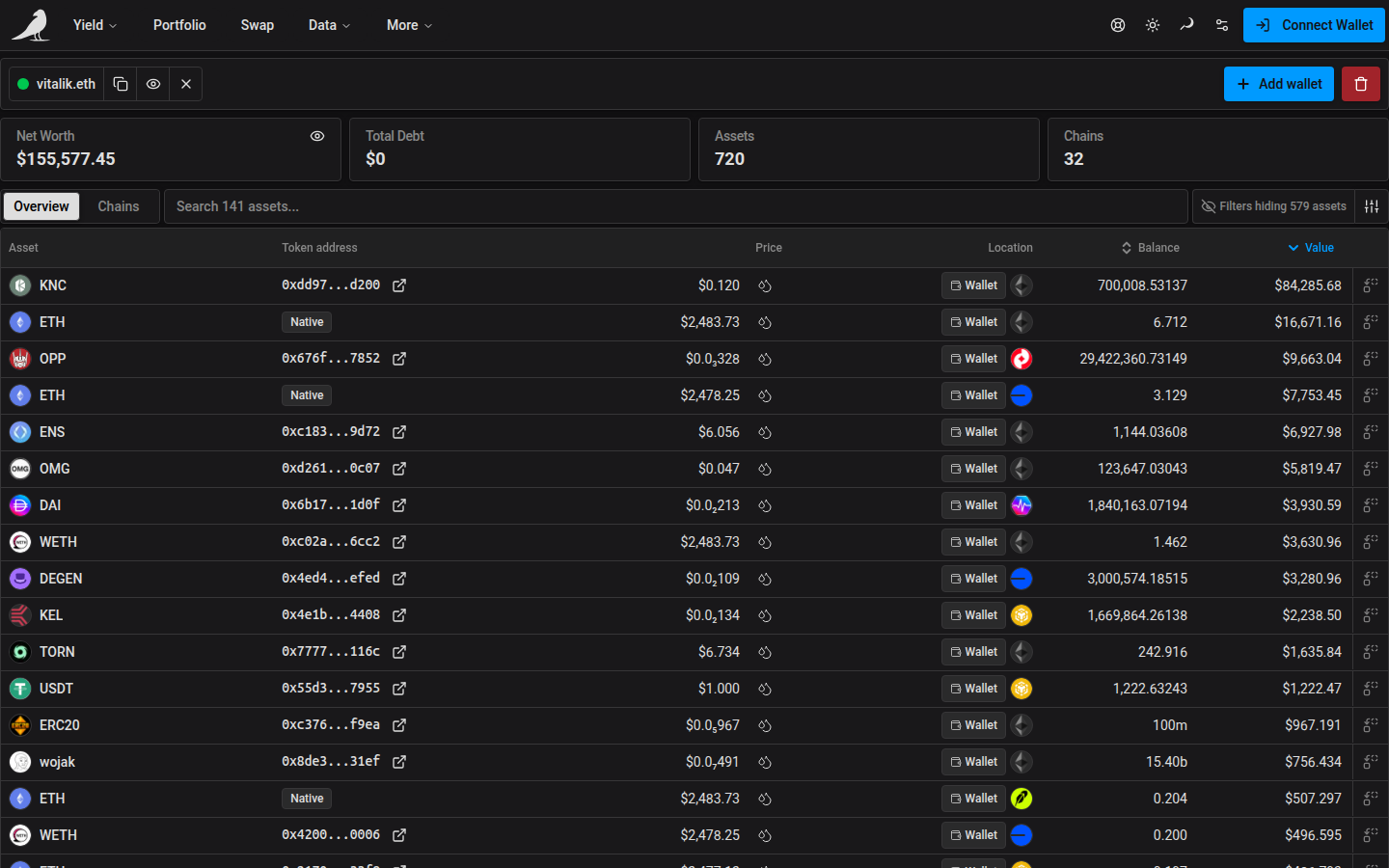
You can also open a read-only portfolio directly by browsing to vfat.io/<address-or-ens> (for example vfat.io/vitalik.eth).
Keeping the numbers fresh
Refresh, at the end of the filter row, reloads every wallet; hover it to see when the balances last finished loading, such as Updated 12s ago. During a reload the current balances stay on screen until the new ones arrive in full, and stay as they are if the reload fails. Coming back to the page or the browser tab after 30 seconds reloads them on its own.
If a previously available balance source fails, Portfolio keeps the previous balances and marks them: the totals show — with Last known and its age, and Couldn’t refresh with the last update time appears beside Refresh. If nothing has loaded yet, the totals show — and the table says Couldn’t load your holdings with Retry, so a failure never reads as an empty wallet. A source that was already unavailable can remain unavailable while the others refresh; the incomplete-balance notice stays visible.
When a transaction confirms, Portfolio also reloads the sending wallet’s balances if it is in the bundle, even if you switched wallets or disconnected while it was pending. Position changes can take longer to appear while indexing catches up; Portfolio reloads the wallet again when the position update arrives.
Totals
The totals share one card and keep to one row; on a narrow screen the ones that don’t fit wait behind N more.
If a holding has no current value, a notice explains why its combined totals show — and allocation shares are left blank. Other known row values and subtotals stay visible. Unvalued holdings stay in the table even with small balances hidden; an unknown value is not a small balance. This also applies when bin reserve claims or their prices are missing.
- Net worth: everything in the shown wallets, with borrowed amounts taken off, and how many wallets and chains that covers.
- Idle in wallet: tokens sitting in wallets, and their share of net worth.
- Earning in positions: pool, farm and voting-escrow positions, with how many there are, their value-weighted APR and what they earn per day. A voting-escrow position contributes its measured vote-reward APR. If some inputs are unavailable or the reward epoch is still in progress, its APR is marked partial, as are the combined APR and daily earnings and the corresponding figures on share cards. Unknown APRs are left out of those estimates.
- PnL: the lifetime net PnL of the shown Sickle positions, as Positions totals it, green or red, for every wallet in the bundle, including wallets you only watch. Hover it for how many positions it covers and whether some have an incomplete breakdown. On phones, the tile shows missing coverage and incomplete breakdowns below the amount, such as 16 of 18 positions · 16 breakdowns incomplete. Known PnL stays visible if refreshing balances fails; the balance freshness warning is separate. Positions held directly in a wallet aren’t tracked, so it shows only when the shown wallets have Sickle positions, and reads couldn’t load PnL right now when it can’t be loaded.
- Lending, net: Compound supplied minus borrowed, with both amounts under it. Borrowed amounts are red. It only shows when something is supplied or borrowed.
- Out of range: the value of pool positions whose price has left their range, and how many of the positions that is, such as 3 of 64 positions. It works for every wallet, including positions held directly in a wallet. Metric positions read their pool’s market data without needing a connected wallet. Ranges still loading or unavailable are counted separately; when none can be classified yet, the value is —. Known out-of-range values remain visible if another pool’s market data cannot be read.
- Unclaimed: fees and rewards not yet harvested waiting in the shown positions, including off-chain rewards such as Merkl. Voting-escrow pending rewards are not included yet because their token metadata and prices are unavailable here. Off-chain rewards belong to a wallet or Sickle on a chain, so each is counted once. When the totals follow filters that leave some balances out, off-chain rewards are left out too and it reads Unclaimed (on-chain). It is not part of Net worth, and only shows when something can be claimed.
While your wallet tokens load first, Earning holds its place above them with placeholder rows, sized from your last visit, so rows don’t move when positions arrive. While the totals load, Out of range and Unclaimed hold their place with the others, and each one that has nothing to show leaves once the positions and ranges are known. Phones also use Unclaimed (on-chain) when filters leave off-chain rewards out.
Wallets load chain by chain, so the totals wait until every wallet has loaded once before they show; the rows appear as they arrive. The phone group tabs filter the list only, never the totals.
By default the totals include every asset in the shown wallets. Use the Apply filters to KPIs funnel beside the eye icon, under the Net worth value, to make them follow your filters, including search and hiding small balances. This choice is saved in your browser separately from the same setting on Positions. The eye icon hides personal balance amounts, including the amounts in the lines under the totals.
After a deposit or another position transaction confirms, Earning in positions keeps its confirmed amount and adds a blue line such as + ≈$500.00 updating until indexing catches up. A new position shows as an Updating row under Earning, with its expected value and a link to the transaction, and changed positions show Updating in their Location. Harvests do not add to this line because they move rewards, not position value.
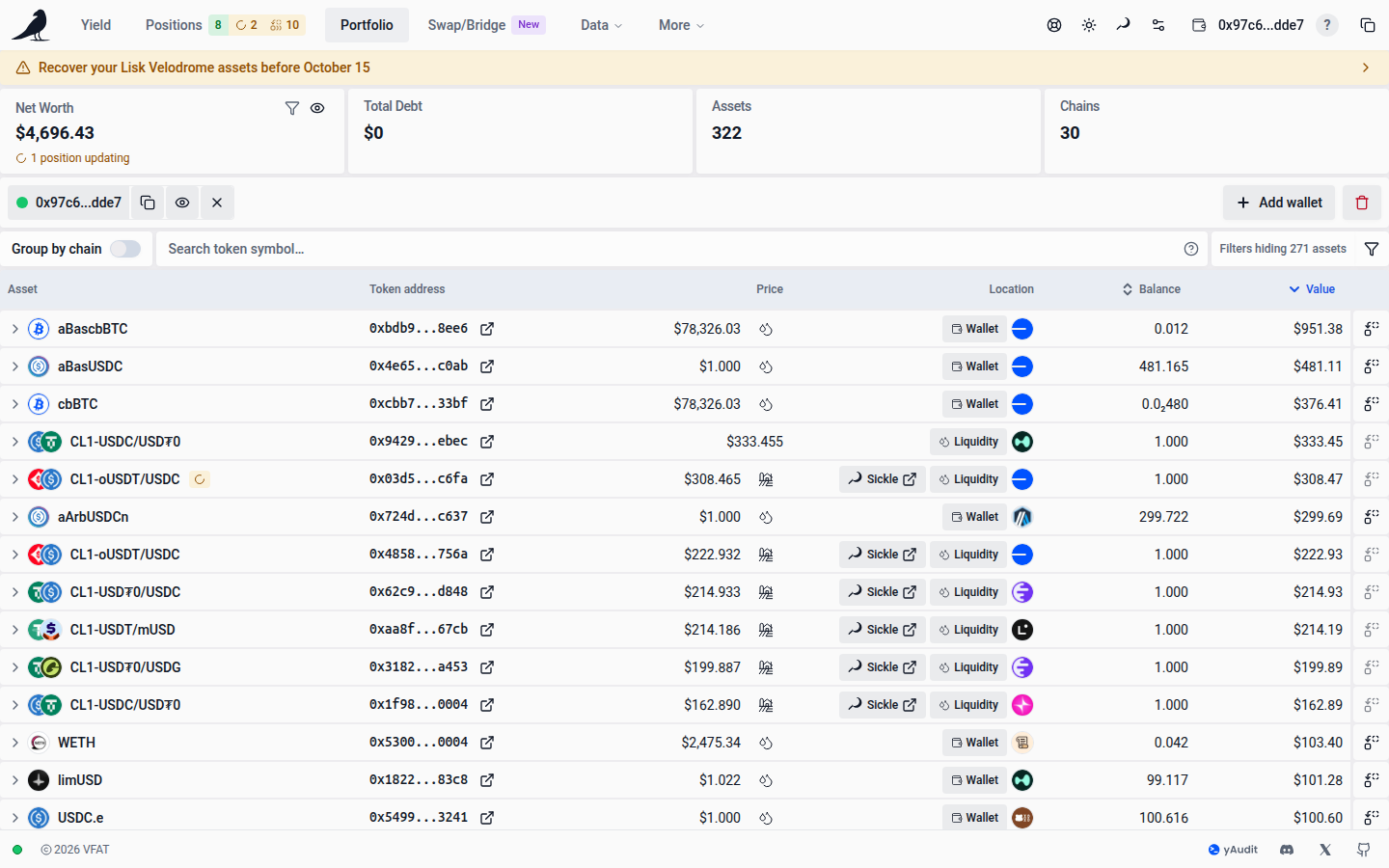
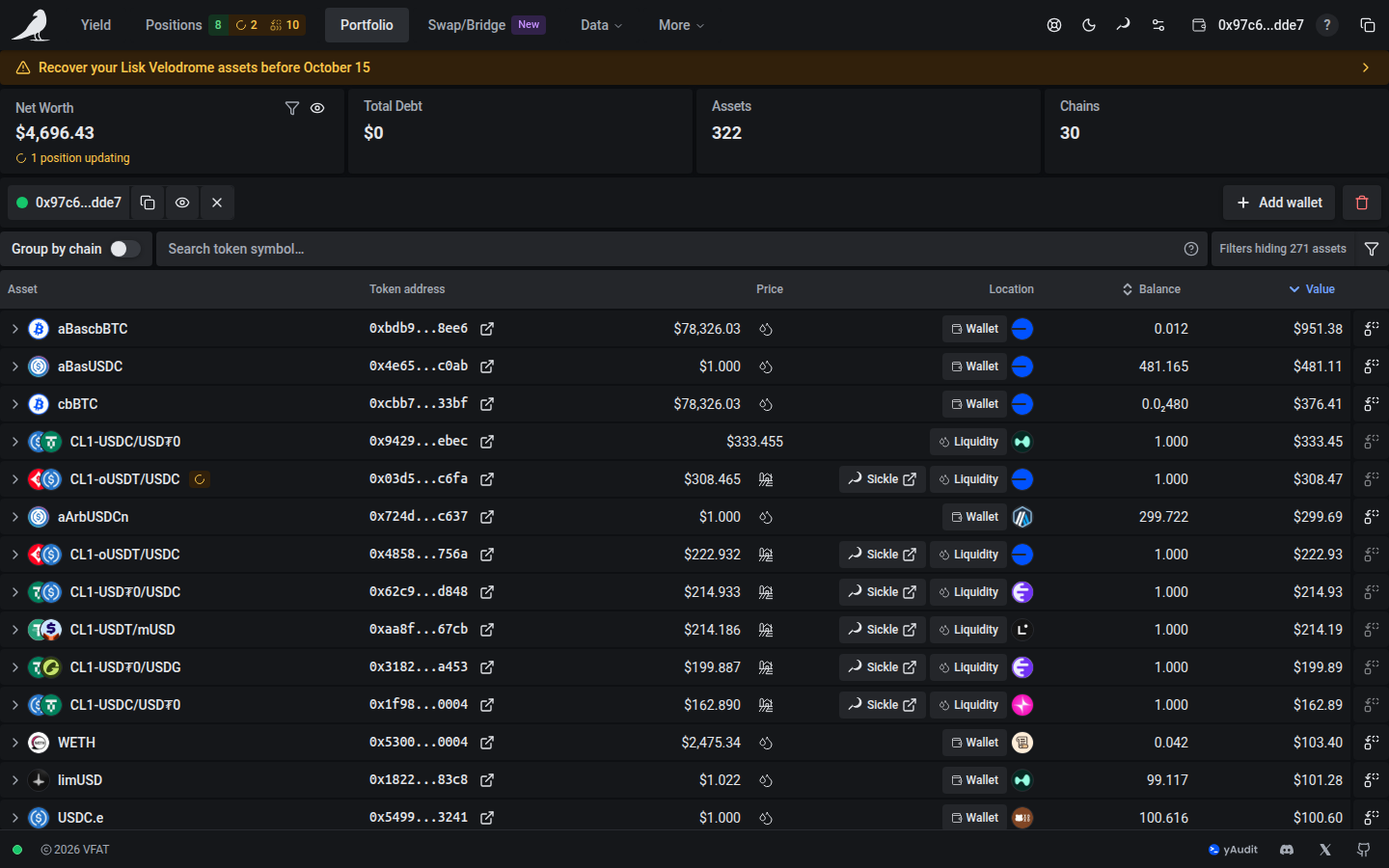
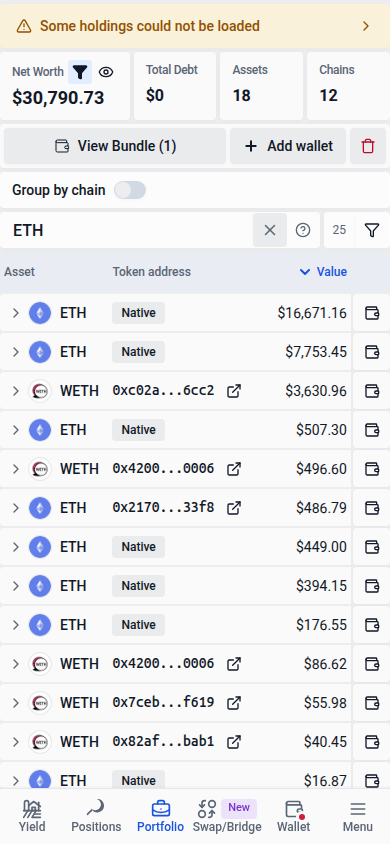
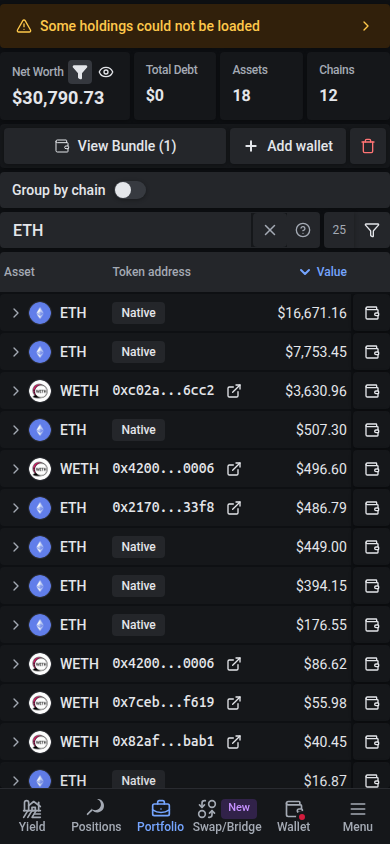
On phones, Net worth leads on one line with Refresh beside it, showing how long ago the balances loaded, and Idle, Earning and, with lending, Lending, net follow as small cards in one row, with Out of range and its position count, such as Out of range · 46, and Unclaimed when there is something to show. The row scrolls sideways when the cards don’t fit. USD and EUR values use whole units from one; smaller amounts keep their cents. Crypto display currencies, such as ETH and BTC, keep significant digits in cards, wallet chips and rows. The wallet chips above scroll sideways, with Add after the last one.
Put idle tokens to work
When your connected wallet holds idle tokens, a strip under the totals suggests up to three of them on the network holding the most idle value, such as ETH → ETH/USDC 35.50%, with what they could earn per day at those APRs. Each APR is for the Standard range the deposit form starts from, as set in your range targets, so it matches the APR the form shows; hover a suggestion to see that range. When no Standard range can be worked out for a pool, the suggestion shows the pool’s average APR on Yield instead, marked avg. Each suggestion is the first whitelisted pool on Yield, in its default order by 7-day earnings, that holds the token itself, so the deposit needs no swap into an unrelated pair. Native tokens are matched to their wrapped token. The strip’s close button hides it for a week for that wallet; meanwhile it’s listed under Notices, where Show again brings it back sooner.
When only one pool token has a cached price, the APR calculation uses the pool’s current exchange rate to price the other token, as the deposit form does.
Choose a suggestion, or the Earn button on an idle token’s row, to open the standard deposit form for that pool with the token already selected. You choose the range and automations there as for any deposit. Compare all pools opens Yield on that network. Dismiss the strip with × to hide it for a week. On phones the strip is one line; Review shows your idle tokens and × hides it the same way.
An open deposit form keeps your entries when the window changes between desktop and phone widths.
APRs move with the pools, and the APR of the range you pick in the deposit form can differ from the pool’s average APR shown in the suggestion.
Holdings
Sickle-held Aero Voting Escrow positions on Base appear under Earning as their locked AERO amount and indexed USD value. An unread amount or unpriced value shows —. A known value below $1.50 follows Hide small balances; an unknown value stays visible. These rows are read-only: Open protocol opens the protocol website in a new tab. Deposit, vote and claim actions are not available in Portfolio.
Rows are grouped into Earning, Lending and Idle in wallet, each with a subtotal. Each group shows its first five rows by the current sort; Show N more lists the rest and Show fewer folds them back. Choose a group’s name to collapse or expand it. Searching lists every match. Each group header counts the small balances it hides, such as 13 positions · 13 small hidden.
Each row shows the asset, its Share of net worth as a bar with its percentage, the wallet holding it, its Location, its APR, its Balance, its Value and, for pool positions, its PnL. A Sickle position’s PnL is its lifetime net PnL, as on Positions. If pending rewards cannot be valued, its known Principal PnL remains visible in the row and totals, with the exclusion explained. PnL appears with a dotted underline when its breakdown is incomplete; a position held directly in a wallet reads —, and hovering it says PnL is tracked for positions managed with vfat. PnL hides below 990px, with Location. The Share column takes the spare width on wide screens and is hidden below 1280px, where Asset takes it instead. Location names where the asset sits, with a range tag for pool positions. APR reads — when it is unknown. Balances use one rule down the list: four significant digits, shortened from 10,000 (700k, 29.4m). A pool position shows both of its amounts, three digits each, such as 0.038 WETH + 19.9k BRICS. Each row ends with its actions as tiles, as on Positions. A position’s tiles are icons, named when you hover or focus them; other actions keep their names, such as View market, and phones show their icon alone. On phones a position’s card keeps one actions button, and tapping the card shows its details.
Liquidity Book / DLMM positions use the value of their underlying bin reserve claims in Value and portfolio totals. Bin share counts are not token amounts. The same position appears once when several watched wallets return it; separately held positions and loose shares remain separate. A missing reserve claim or price leaves the value unknown. Pending rewards and principal-only PnL are separate from this holding value.
The shield beside the asset name shows token warnings, including a risk affecting an underlying pool token. Open it for a brief explanation, suggested next step and last-checked date when available. Older warnings remain visible with May be outdated. Matching warnings across wallets appear once. The shield does not change balances, values, totals, allocation shares, suggestions or actions.
- Earning rows show the pool, its fee and tick spacing, and whether the position is In range, Full range (classic pools, which have no range to leave) or Out of range, whose APR is muted. Your connected wallet’s positions end with the same actions as on Positions, so you can act without leaving Portfolio: a Sickle position has Harvest, Compound where its chain supports it, Rebalance when it is out of range, and Exit, and a position held directly in your wallet has the buttons of Wallet positions, such as Deposit NFT or Deposit LP to move it into a Sickle, Migrate for a staked one, and removing liquidity or claiming rewards. The arrow after them opens the pool on your position. Other wallets’ positions show Open pool. If protocol details could not load, ordinary management is unavailable; a recognized issuer recovery remains available. The group header shows the positions’ total PnL, and opens Positions when your wallet is in the bundle; their APR and daily earnings are in Earning in positions above. Like its value, the header’s PnL adds up only the rows the table shows, so it can differ from the PnL total above, which includes small balances and filtered rows unless the totals follow your filters. Grouped by chain, each chain’s header shows its positions’ PnL the same way.
- Lending rows are marked Supplied or Borrowed. Borrowed amounts read as negative, in red, and the group total is net. View market opens the lending market.
- Idle in wallet rows offer Earn for your connected wallet’s tokens, opening the deposit form for the suggested pool, whose Standard-range APR shows on hover. Earn is soft blue, the one suggestion on the row. Before it, Swap opens the swap form over Portfolio with the token selected, so you can swap it into any token, on its chain or another, without leaving the page. A token starts from your whole balance; a native token such as ETH starts empty, and its MAX keeps enough for gas. Swap is offered for tokens held in your connected wallet on chains that support swaps, not for tokens inside a Sickle or for pool tokens. Other wallets’ tokens offer Find pools, which searches Yield for the token. Wallets you watch are marked watch only once, on their wallet chip, not on every row.
Every token and pool icon carries its chain’s badge. Click a row, or focus it with Tab and press Enter or Space, to see its details; repeat to close them. Group headers and Show more rows are not selectable.
- A pool position’s details keep to the position and leave out what its row already shows. The pool’s own charts and figures are on its farm page, behind Open pool. Side by side on wide screens, stacked on phones:
- Range, for a concentrated, Liquidity Book or Metric position: the same chart as Positions’ overview, with the pool’s liquidity, your bounds, the current price and the position’s daily rewards. Beneath it, In range, 30d gives a count such as 24/30 and one pip per UTC day since the position opened, up to 30, green when that day’s price reached the range at any point, red when it didn’t, and grey when its price history is missing. Missing days do not count toward the total or extend an out-of-range streak. It comes from the pool’s daily price history, so it is approximate; when the position is out of range it adds how many days in a row it has been out. A rebalanced position reads Current range, 30d: its earlier days are measured against the range it holds now, not the ones it held then.
- Your PnL for a Sickle position, from whichever wallet in the bundle holds it, connected or not: its PnL over time with ROI, return APR and net deposits, and a compact summary of its rebalances in the last 24 hours. Incomplete activity and cost data are labelled separately; a failed refresh retains the known figures with a warning and Retry.
- Position: the Standard range APR when the pool has a Standard suggestion (what the deposit form’s Standard range earns in this pool today, to compare with the position’s APR in the row); what is Unclaimed, with the uncollected fees and reward tokens (led by their amounts when none of them has a price); its Composition, each token’s share of the value, with amounts and values on hover (a token without a price reads no price); its Pool share, masked with the balances when Hide balances is on; when a Sickle position Opened, and its ROI when it has no PnL chart. Contracts in the heading opens the pool, farm, position NFT, NFT manager and Sickle addresses with explorer links. Hide balances also masks personal amounts and estimated daily rewards in the embedded range summaries.
- A wallet token’s details, side by side on wide screens and stacked on phones:
- Price: the token’s name (Native token for a chain’s own token such as ETH), its price and 24-hour change, and a chart labelled price, last 24h with the day’s low and high. Hover over the chart, or focus it and use the arrow keys, to read each hour’s time and price. Liquidity is the on-chain liquidity the token trades against and how many pools hold it, linking to its liquidity view.
- Holdings: how much each wallet holds and its value, and the Value change, 24h of the whole holding at the price’s 24-hour change. Contracts in the heading opens the token’s address.
- Earn with the token: Yield’s top three pools for it on its chain, as Earn finds them, each with its protocol, tick spacing or fee, TVL and APR (the Standard range APR for concentrated pools). For your connected wallet’s tokens each pool has Earn, which opens the deposit form; a watched wallet’s tokens get Open, which opens the pool. All pools searches Yield for the token on its chain.
- Closing a token’s Swap form stops preparation that has not entered the transaction queue; a transaction already queued keeps its progress in Transactions.
- For a watched wallet, the details end with a line such as Watch only · connect vitalik.eth to manage this position. in place of buttons it could not use.
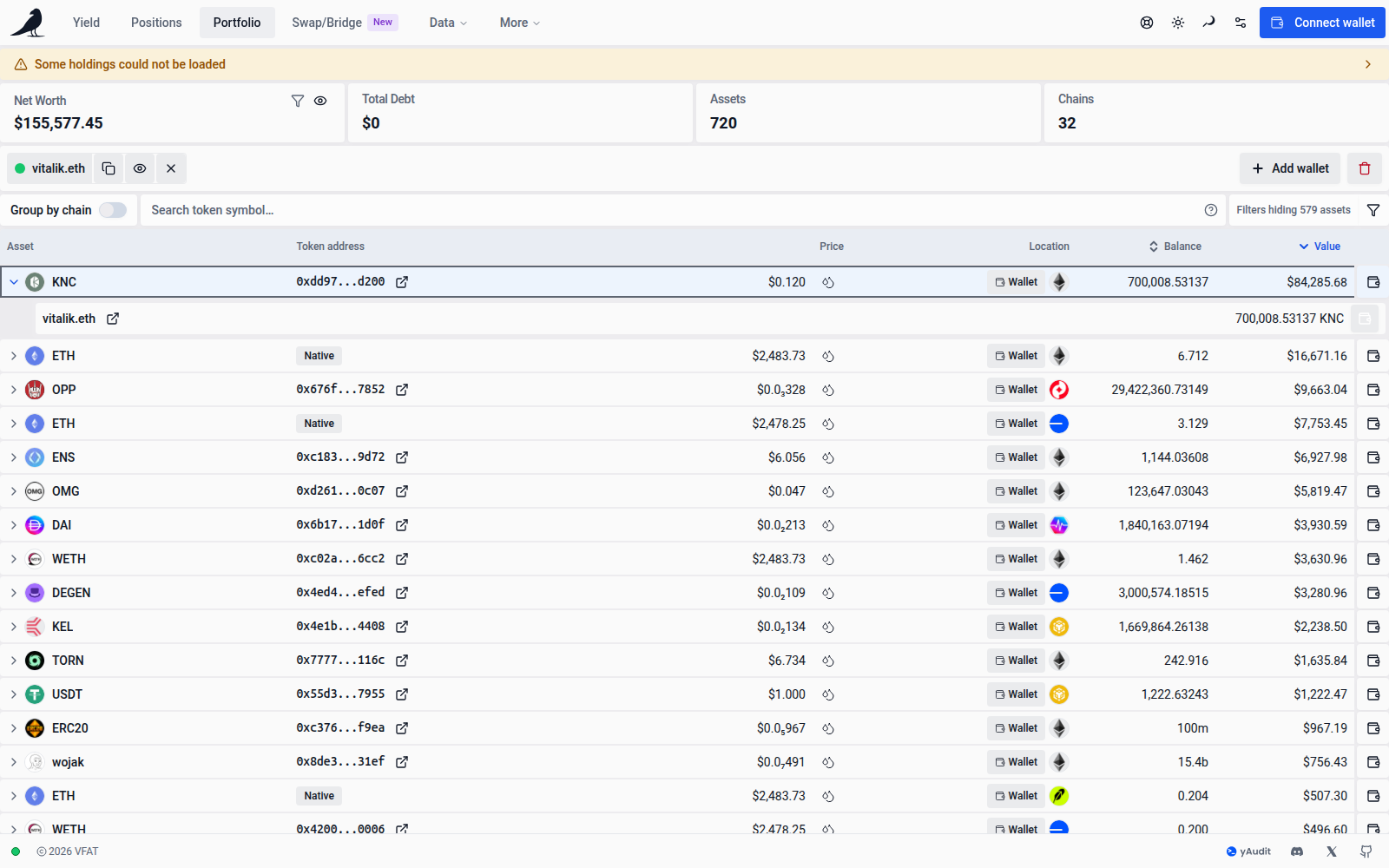
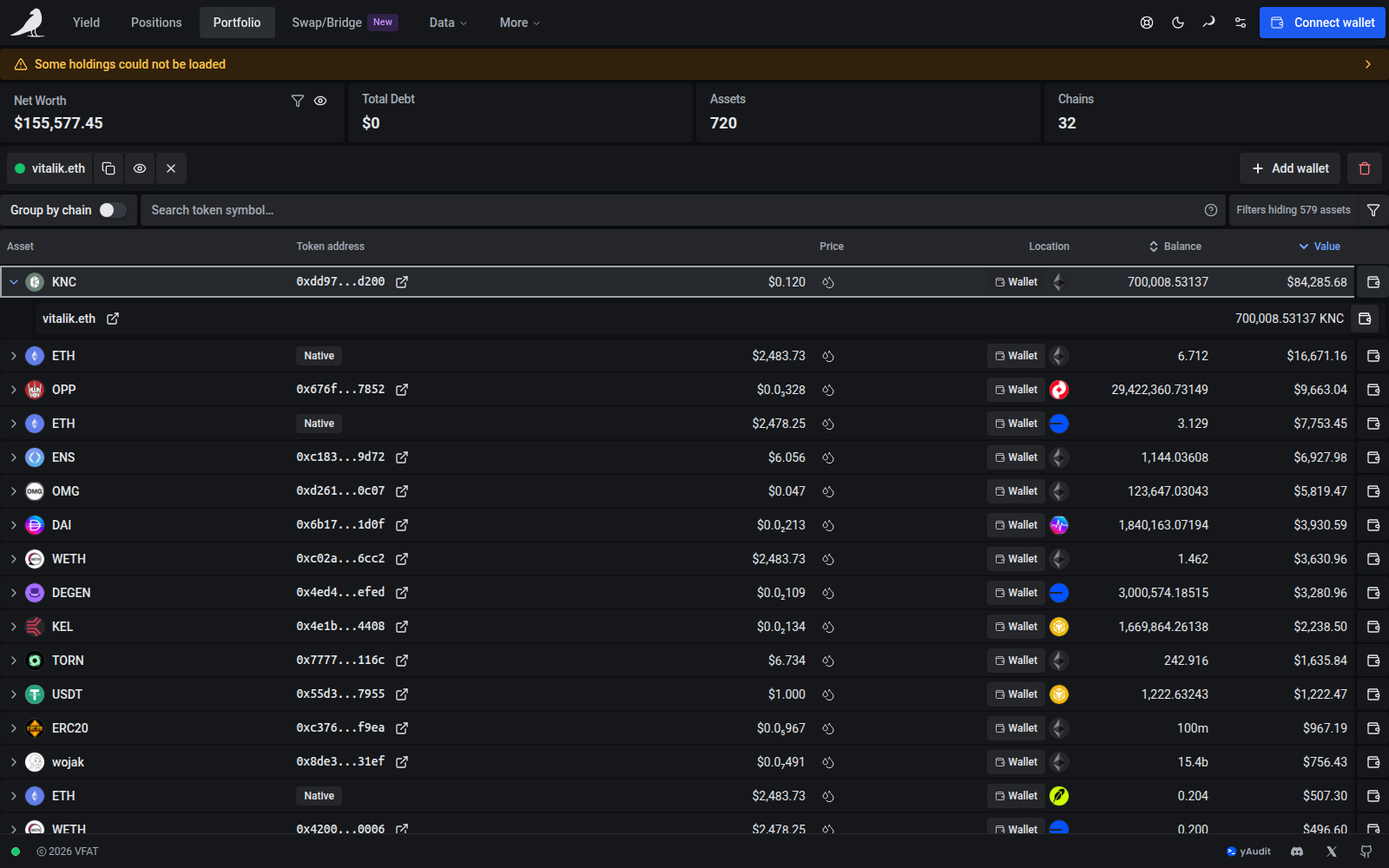
On phones, choose Earning, Lending or Idle to see one group at a time; the biggest group is shown first. Each row is one card: the token logos and name, its value in whole dollars with its APR or amounts under it, and its action inside the card. Out-of-range positions carry a small Out tag.
Search and filters
Search token and pool symbols, the tokens in a pool (such as WETH/USDC), and token, pool or Sickle addresses. Matches are partial and ignore case. Open Search help beside the field for examples.
Chains opens the chain and asset type filters, and Small balances hidden shows how many balances under $1.50 are hidden; press it to show them. Pool positions count by the value in their Value column. Large portfolios support continuous scrolling, and search and sorting cover every asset.
Grouping by chain
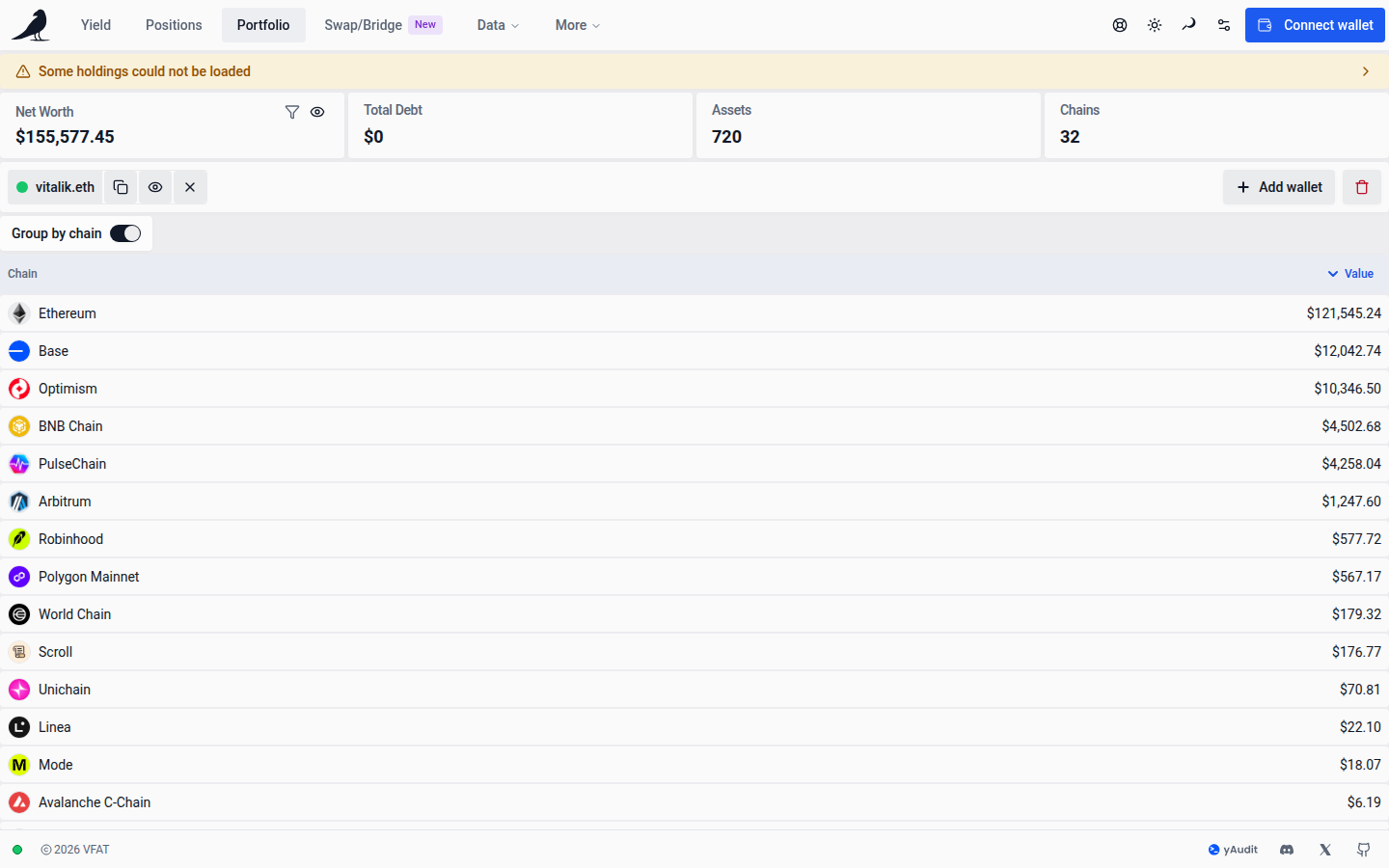
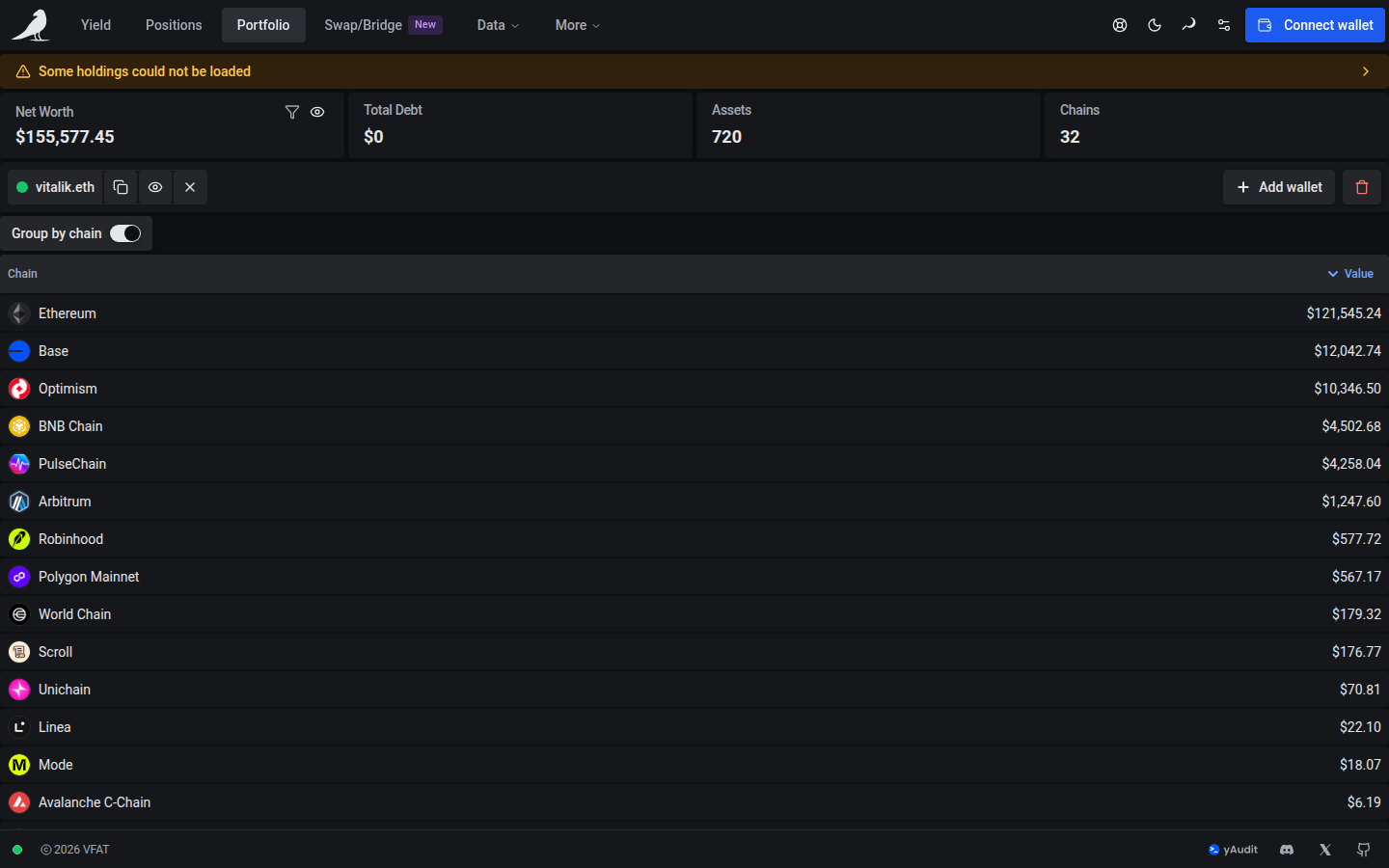
On desktop, Portfolio opens By type. Choose By chain, beside Chains and Small balances, to group the same rows by network instead, largest first, each with its net subtotal. Groups collapse and show more in the same way, and search and filters keep working.
Token liquidity
The price in an expanded row links to that token’s liquidity page, showing every pool it trades in. See the Mainnet USDC liquidity page for an example, or read Tokens for more.
When a live token balance refresh fails, the last known balance stays visible. The app also tries the selected network’s configured RPC connections if the shared balance service is unavailable. A successfully read zero updates the balance to zero; an unsuccessful read does not establish an empty wallet.