Deposits View
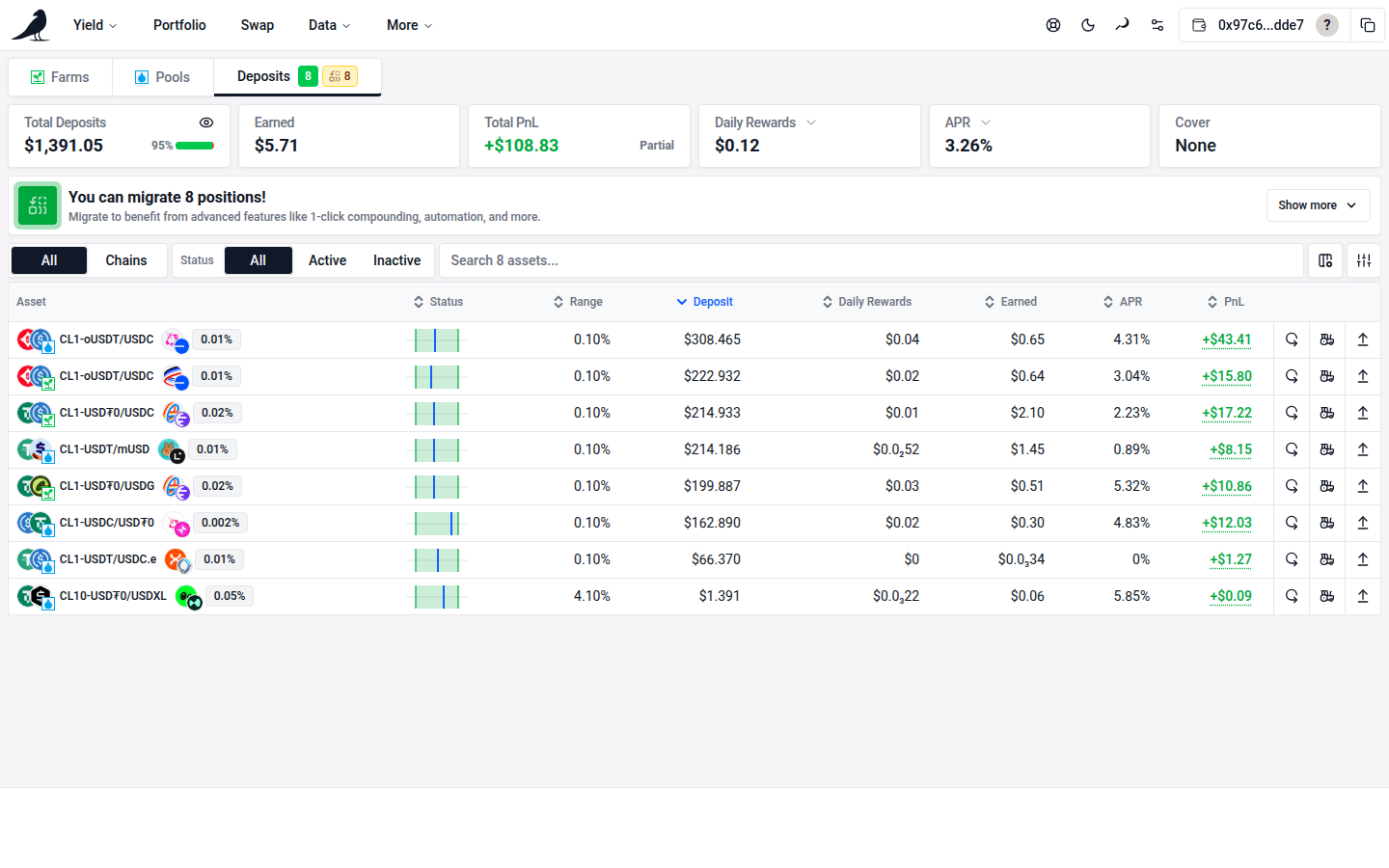
The Deposits tab lists every Sickle position you currently hold, whether opened through Farms, Pools, or migrated in.
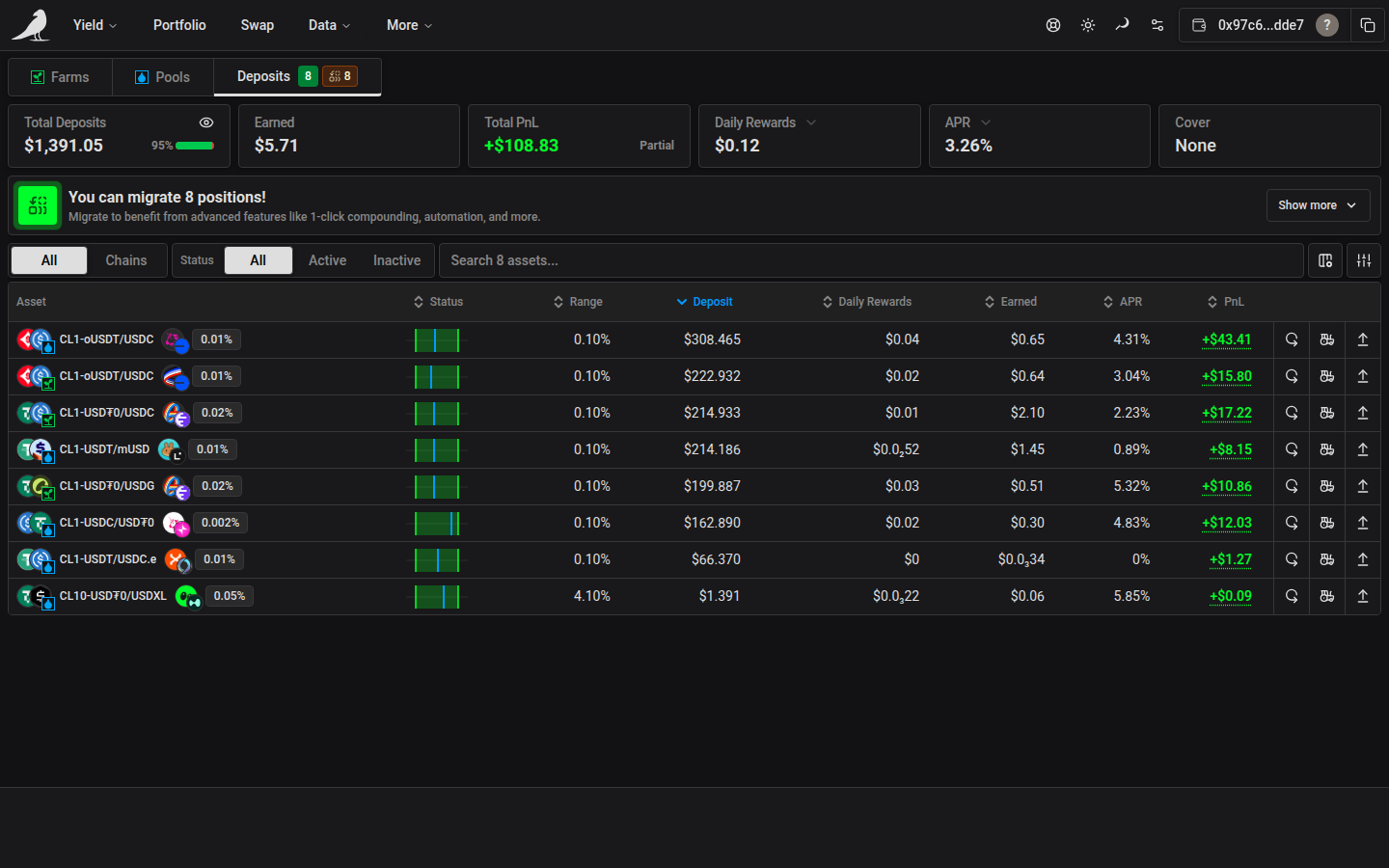
KPIs and period toggles
The top of the page shows aggregate KPIs for your open positions: Total Deposits, Earned, Total PnL, periodic Rewards, APR, Cover, and a Rewards widget for chain-specific reward programs like Katana pre-staking that appears when applicable. Two of these are dropdowns that change how they’re calculated:
- Rewards period: Hourly, Daily, Weekly, Monthly or Yearly
- APR period: Daily (DPR), Weekly (WPR) or annualized (APR)
Total PnL includes positions with a numeric lifetime net PnL, even when their performance breakdown is incomplete. A fraction such as 3/4 means one position is missing from the total. Partial means all positions are included but at least one has an incomplete breakdown; the tooltip explains this coverage.
All vs. Chains
Similar to Portfolio’s Overview/Chains toggle, Deposits can be viewed as a flat table of every position (“All”) or grouped by chain (“Chains”) for a per-network breakdown.
On wide screens, the first position in the All view is selected automatically and its action pane opens, while the row stays collapsed. Click the selected row to expand its inline details.
Filtering, search and columns
The toolbar above the table has an All/Active/Inactive status filter, a search box, a column selector (choose which columns are shown), and a filters dialog. The filters dialog covers chain, protocol, farm type, position type (farms/pools), favorites, whether cover is available, automation type (auto-rebalance, auto-compound, auto-harvest, each with an “only” or “hide” toggle), and numeric thresholds for pool fee, deposit size, APR, daily rewards, range width and amount earned. Filter combinations can be saved as reusable presets.
The PnL and ROI columns sort by their displayed figures, including figures with a partial-data caveat. Cells showing Partial or an unavailable placeholder stay at the end in either sort direction.
Position status
While a transaction against a position is confirming, that row shows a “Position data updating” banner until the new state is reflected. Positions also indicate whether they’re currently in range (for concentrated liquidity) and whether cover is active.
Pending transactions
Choose Run in background to keep a transaction running while you use the site. Starting an action on another position asks you to confirm Queue it. An action on the same position must finish or be cancelled first.
View details lists each run with its own status, Retry, and Cancel or Dismiss controls. Cancelling stops the app from continuing that run; a transaction already approved in your wallet can still complete on-chain. Stop waiting stops all runs.
The background notification shows a short preview of long errors, keeping View details and the close button visible. On smaller screens, it appears at the top so the position action and Back buttons stay clear. You can dismiss it or open View details while the position panel stays open. Open View details to inspect the failure and copy the full error message. On an error notification, the close button dismisses all finished runs, including rejected transactions, in one click; active runs continue in the background.
Wallet prompts appear one at a time. Independent transactions can wait for confirmation together, while automation permission updates for the same Sickle wait for the preceding update to finish.
Position detail
Opening a position’s action pane shows its Total PnL, ROI and APR. These are lifetime figures, calculated across rebalances and including harvested rewards and fees (plus unclaimed Earned rewards where reward metrics are available). The pane also shows the position’s age and, when available, a link to that position’s full history on info.vf.at.
In Rebalance → Manual, the current position range chart stays visible above the new range controls. An out-of-range position shows a compact warning beside the price toggle.
The History tab lists every action taken on the position: deposits, withdrawals, harvests, compounds, rebalances, moves and exits, each linking to its transaction in the block explorer. Filter by operation type or a date range. An automation icon (with a fuel icon when it drew from your prepaid gas account, see Sickle) marks actions that ran automatically rather than ones you triggered manually.
Migration
When positions are available to migrate, the Deposits tab shows an amber migration icon and count beside the active and inactive position counts. Hover over the badge to see how many positions can be migrated to Sickle.
Positions held directly in your wallet that can be migrated to Sickle appear in the migration section immediately above the positions table. On desktop, this section stays in the left column beside the action pane. Choose Show more to review the positions and their migration actions. The migration table is available only in Deposits; its tab badge remains visible while browsing Farms and Pools.
If your Sickle needs a one-time automation upgrade, follow the upgrade prompt in its automation settings or action pane. The upgrade preserves your existing settings.