Support
Support tracks your support tickets. Use Create ticket in a deposit, position or chain action pane to describe a problem; a failed simulation isn’t required. In deposit and position headers the button reads Need help?; on phones it shows only its lifebuoy icon so the pool name keeps its space. On Swap, Need help? sits below the swap form. The form includes the relevant context and lets you add a message and screenshots. Failed simulations also offer a report action with the error attached.
Tickets are tied to the wallet that opened them, so you need to connect that wallet to view them.
Creating or updating a ticket requires a wallet signature. If the connection needs to be restored, use Connect wallet in the form and reconnect the same account. The ticket form returns after you connect or close the wallet window, keeping your title, message and screenshots so you can retry.
Creating a ticket, replying to an existing ticket and reopening a closed ticket require a bot check. Complete verification before submitting. Each submission needs a fresh verification; if it expires or fails, retry it. Your draft and screenshots stay in the form. Reading or closing a ticket does not require a bot check.
Support requests have rate limits. If you reach one, the form shows when to retry and keeps your draft.
On mobile, the ticket form opens in a bottom drawer. Swipe inside the drawer to reach the message, screenshots, ticket context and bottom buttons, including while the keyboard is open. Position tickets require a message describing the issue before Create ticket becomes available.
Failed transactions
A wallet submission failure keeps the wallet’s original explanation when available. Use the copy button beside the error to include it in a ticket. If an alternative submission method is unavailable, its error does not replace the original failure. This message alone does not confirm whether a transaction was broadcast; keep any transaction hash your wallet provides.
A mined transaction that reverted is reported as This transaction failed on-chain, even if its failure reason cannot be retrieved. When available, a receipt-block replay adds a Likely cause. Replay uses the state at the end of that block and may differ from the original failure; it is not an exact execution trace. Keep the transaction hash when reporting a problem.
Tangem
For transactions with a vfat gas limit, vfat supplies Tangem with a suggested fee that preserves that limit. Keep Tangem’s Suggested by dApp fee option when confirming. Choosing another fee option can replace the gas limit and cause an out-of-gas failure. This compatibility handling applies to Tangem connected through WalletConnect across supported EVM chains. Fee estimates come from the transaction’s chain; quote fee constraints still apply.
Tickets list
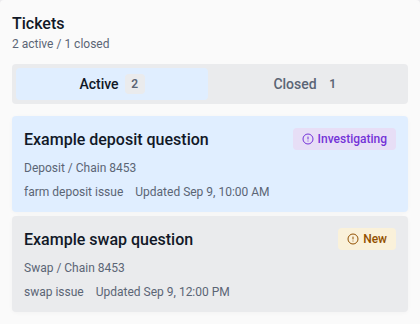
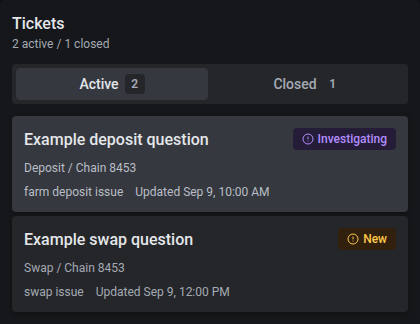
Tickets are split into Active and Closed tabs, each with a count. Every ticket shows its title, a status badge, the ticket type, and when it was last updated (plus when it’ll be purged, once closed).
A ticket’s thread
Selecting a ticket shows:
- Ticket context: the stored metadata and captured error for that failure, so support can see what happened without you having to re-describe it
- Messages: a thread between you, Support and the System, each with a timestamp and optional screenshot attachments
- Reply box: up to 4,000 characters; paste a screenshot directly into it to attach one
Web links in messages are clickable and open in a new tab. Long URLs wrap within the message, and line breaks are preserved.
Managing a ticket
- Close ticket / Reopen ticket: you can close a ticket yourself once it’s resolved, or reopen a closed one if the issue comes back
- Refresh: re-fetches your ticket list and the open thread
- Closed tickets are purged after a retention period (30 days by default), shown at the top of the page
If support locks a ticket, its history remains visible, but customer replies and close/reopen controls are unavailable until support removes the lock.
Spam tokens
Support staff can blacklist a spam token on a specific chain. Its token listing and pools are then hidden from vfat, including searches that include non-whitelisted tokens. The block remains in place until staff explicitly unblock it.
The admin support dashboard separates Restricted candidates and Blocked tokens into tabs. Both tables show the token logo, symbol, chain, address, whitelist status and paired liquidity. Search by symbol, name or address, or filter by chain; each page contains at most 25 tokens. Missing names remain searchable by address. Select a token address in either tab to open it on scan.vf.at in a new tab, including when its name or liquidity is unavailable.
Paired liquidity counts only the other assets in cached pools, excluding the reviewed token’s own balance. Unknown means pool or price data is unavailable, not zero liquidity; ≥ marks a partial lower bound. Blocked tokens may already have left the serving caches. Open the liquidity tooltip for the available pool count and limitations. These values are estimates, not executable sell quotes.
Reasons are summarized in the table. Open the information tooltip (a drawer on phones) for the complete reason, exact address, last-check time and evidence validity window, or the block time and operator. Expired findings and pending rechecks remain available; incomplete indexing is shown separately. Missing assessment information and measured transfer taxes do not create blacklist candidates. Staff review the evidence and explicitly submit an editable blacklist reason; candidate status alone never hides a token. New assessments retain the sampled transfer failure: decoded revert reason or custom error and arguments, raw bytes, return-value failures or a missing recipient balance. Details identify the probe, holder, recipient, raw sample amount, holder balance and pinned block. These are failures in sampled contexts, not a verdict about every wallet. Older assessments show that error details were not recorded until an ordinary recheck adds them. Blocking or unblocking returns to the same table and filters.
Leaving feedback or reporting a bug
For general feedback or issues outside a deposit, position, swap or chain context, use Leave feedback or Report a bug in the footer. Both open vfat’s feedback board.